This post focuses on the deployment of our landing page project to DigitalOcean. The code is available here:
https://github.com/EdgarGGamartgo/landing-page/tree/laravel-postgres-ditigalocean
In case you haven’t read the previous posts, llease take a look at this post in order to understand what kind of project we’ll be deploying:
If you’re interested in knowing how to deploy to Hostinger, you can also check this post:
First I created a DigitalOcean account, registered my credit card for payments and created a “Droplet”. Apparently DigitalOcean allows me to share a refferal link for new users to sign up and if you sign up using this referral link, you’ll get $200 USD worth of credits to use (valid in the first 60 days since you registered your credit card). Here is my referral link:
https://m.do.co/c/09d54562c15f
Once we have our account, we can create the droplet by following these steps on the DigitalOcean dashboard:

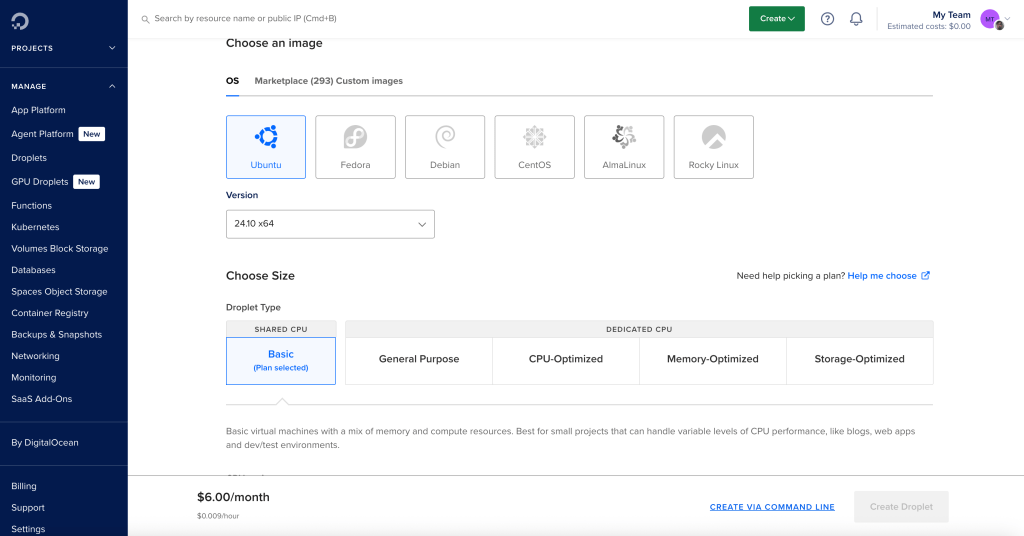


That creates a cheap and good enough instance to use for our simple project. Next, we want to access our droplet in order to set up the dependencies we require for our project such as the Postgres DB and Laravel requirements. We can access the console on the screen:
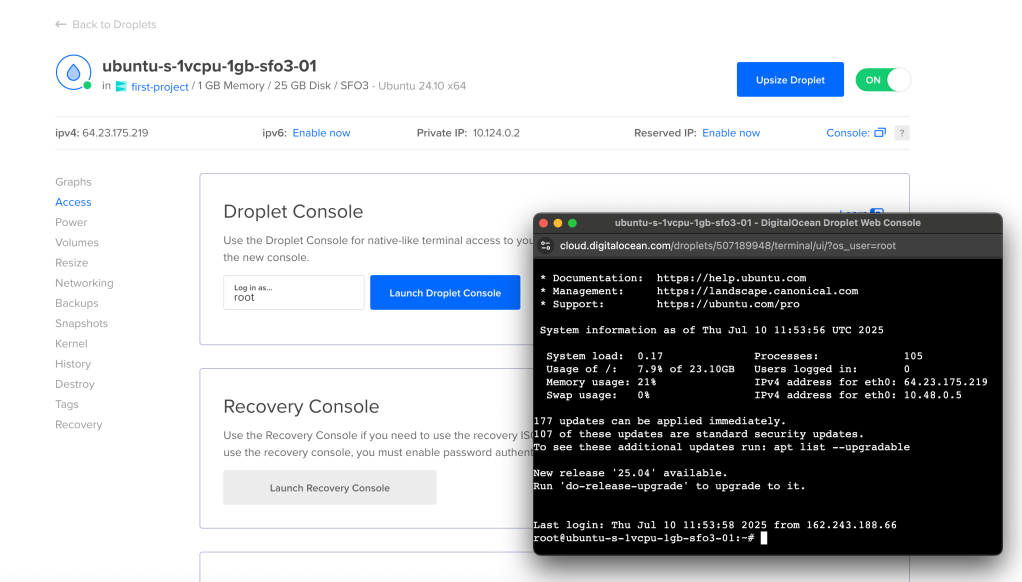
We run the following:
apt update && apt upgrade -y

apt install php php-fpm php-xml php-mbstring php-pgsql php-curl php-zip unzip -y

curl -sS https://getcomposer.org/installer | php

mv composer.phar /usr/local/bin/composer

apt install nginx -y

apt install postgresql postgresql-contrib -y

systemctl enable postgresql

systemctl start postgresql

sudo -u postgres psql
Then, inside the PostgreSQL shell, run:
CREATE DATABASE landing_db;
CREATE USER laravel_user WITH PASSWORD 'yourpassword';
GRANT ALL PRIVILEGES ON DATABASE landing_db TO laravel_user;
\q
Next, we get a copy of our project by cloning the repo, so in the console we run:
git clone https://github.com/EdgarGGamartgo/landing-page.git

cd landing-page

git checkout laravel-postgres-ditigalocean
We want to create a new .env file with the DB credentials that have created in the previous steps, make sure to update APP_URL (it should be http://your_server_ip) too.
Next, we run:
composer install --no-dev

php artisan key:generate

php artisan migrate
In case you get authentication errors when trying to run the migrations, try this:
sudo -u postgres psql

ALTER SCHEMA public OWNER TO laravel_user;

GRANT ALL ON SCHEMA public TO laravel_user;
GRANT USAGE, CREATE ON SCHEMA public TO laravel_user;
ALTER DEFAULT PRIVILEGES IN SCHEMA public GRANT ALL ON TABLES TO laravel_user;
ALTER DEFAULT PRIVILEGES IN SCHEMA public GRANT ALL ON SEQUENCES TO laravel_user;

DROP TABLE IF EXISTS migrations;

\q
Then try migrations again:
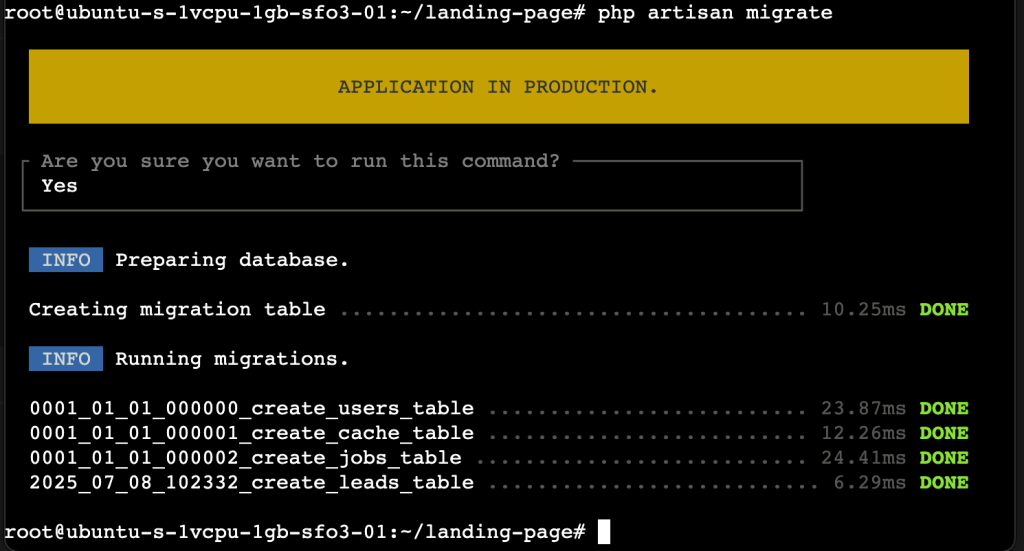
php artisan migrate
Our tables should be available now:
We now run the following:
chown -R www-data:www-data /root/landing-page
chmod -R 755 /var/www/landing-page/storage
chmod -R 755 /var/www/landing-page/bootstrap/cache
nano /etc/nginx/sites-available/landing-page
In that Nginx config file, we want to have:
server {
    listen 80;
    server_name your_server_ip;

    root /var/www/landing-page/public;

    index index.php index.html;

    location / {
        try_files $uri $uri/ /index.php?$query_string;
    }

    location ~ \.php$ {
        include snippets/fastcgi-php.conf;
        fastcgi_pass unix:/var/run/php/php8.3-fpm.sock;
    }

    location ~ /\.(?!well-known).* {
        deny all;
    }
}
Enable the site:
ln -s /etc/nginx/sites-available/landing-page /etc/nginx/sites-enabled/
Restart Nginx:
systemctl restart nginx
In case the port 80 is being used by other process, such as the case of Apache, we can stop it:
systemctl stop apache2

systemctl disable apache2

apt purge apache2 apache2-utils apache2-bin apache2.2-common -y

apt autoremove -y
Note, web apps belong under /var/www
so, we should have our project files here:
root@ubuntu-s-1vcpu-1gb-sfo3-01:/var/www/landing-page
In case you added them to root, you can move them like this:
mv /root/landing-page /var/www/
sed -i 's|/root/landing-page|/var/www/landing-page|g' /etc/nginx/sites-available/landing-page
chown -R www-data:www-data /var/www/landing-page
chmod -R 755 /var/www/landing-page/storage
chmod -R 755 /var/www/landing-page/bootstrap/cache
nginx -t && systemctl restart nginx
I found one more issue. Nginx config was pointing to PHP 8.1.
No PHP-FPM → Nginx returns 502 Bad Gateway.
As a solution, I updated Nginx Config, I replaced this line
fastcgi_pass unix:/var/run/php/php8.1-fpm.sock;
with this line
fastcgi_pass unix:/var/run/php/php8.3-fpm.sock;
Next, I ran
apt update
apt install php8.3-fpm -y

sed -i 's|php8.1-fpm.sock|php8.3-fpm.sock|g' /etc/nginx/sites-available/landing-page

nginx -t && systemctl restart php8.3-fpm && systemctl restart nginx
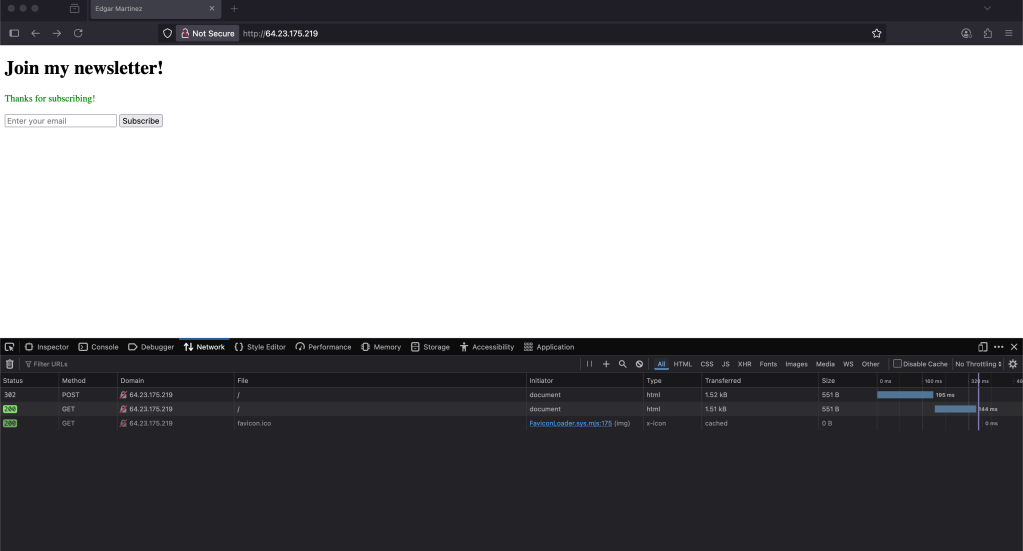
Finally we can interact with the landing page:
I don’t have an available domain this time so using HTTPS will be a subject for the future but in the mean time we can verify that the project is working on DigitalOcean:
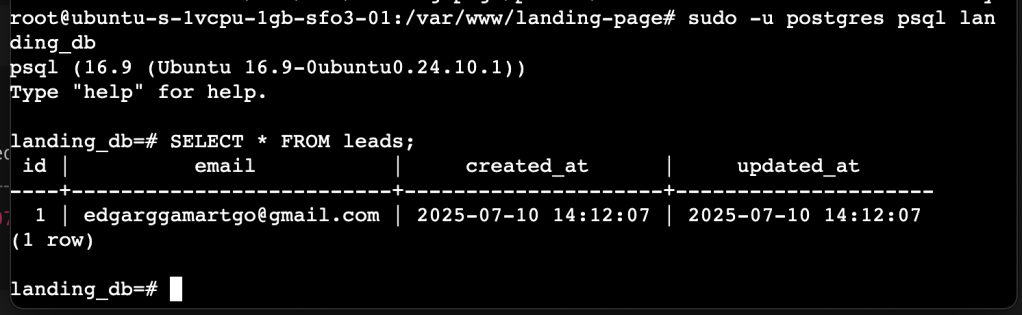
Emails are stored in the databse:
That’s it, thanks for reading!!
